Unit 15 - Data reprojection
In this unit EU-DEM global dataset provided by Copernicus programme will be used. Jena region is covered by tile E40N30. Be aware that EU-DEM tiles covers large regions (4GB per tile).
Important
Note that a new Copernicus DEM product is available from Copernicus Data Space Ecosystem.
The DEM tile can be imported and automatically reprojected into the
target project (jena-region) similarly as other input data used in
this course. However, it is unnecessary to import the entire DEM tile
into GRASS; only the portion covering the area of interest (AOI) is
required. By using the -r flag of the r.in.gdal tool,
it is possible to import only a subregion corresponding to the
AOI. Unfortunately, the r.import module does not provide
this option. For this reason, the data are reprojected manually. The
input data are first imported into a new project (ETRS89-extended /
LAEA Europe, EPSG:3035) and subsequently reprojected into the
target jena-region (WGS 84 / UTM zone 32N, EPSG:32632).
Note
In order to save disk space the original EU-DEM tile was
clipped by larger region than Jena AOI. Modified tile is available
from eu-dem directory.
Create project for data import
EU-DEM dataset is provided in ETRS89-extended / LAEA Europe
(EPSG:3035). Create a new GRASS project jena-eu-dem based on
input eu-dem/dem_sample.tif file as described in Unit 02) or from EPSG code.
Important
Skip data import provided by project wizard since only subregion defined by Jena city region is planned to be imported.
Enter new project (PERMANENT mapset) and copy (ie. reproject) jena_boundary into the current project.
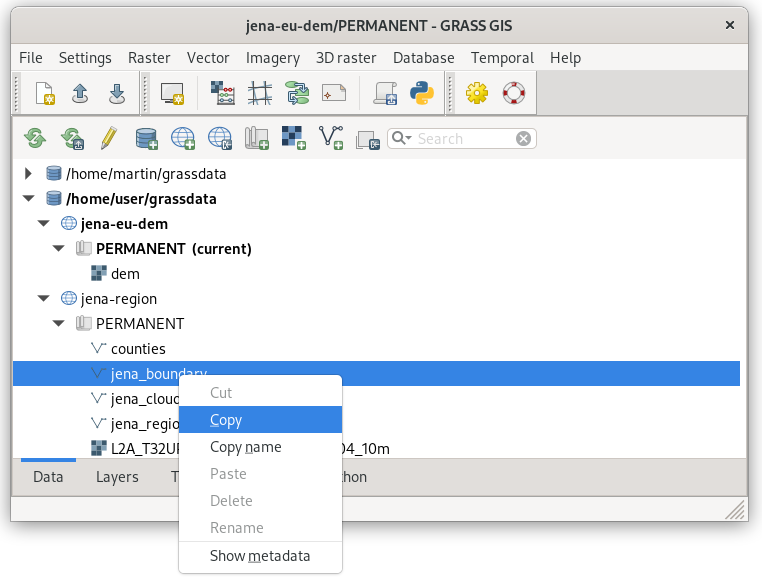
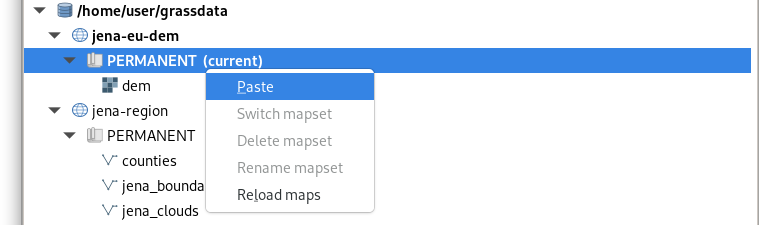
Fig. 82 Copy jena_boundary vector map from jena-region project (EPSG:32632) to the current project (EPSG:3035).
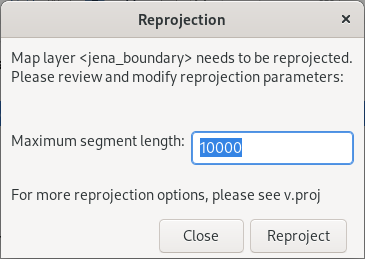
Fig. 83 Reprojection and default maximum segment must be confirmed.
Note
The same operation can be done by v.proj:
v.proj project=jena-region mapset=PERMANENT input=jena_boundary
Before importing DEM set computation region extent based on reprojected Jena city region.
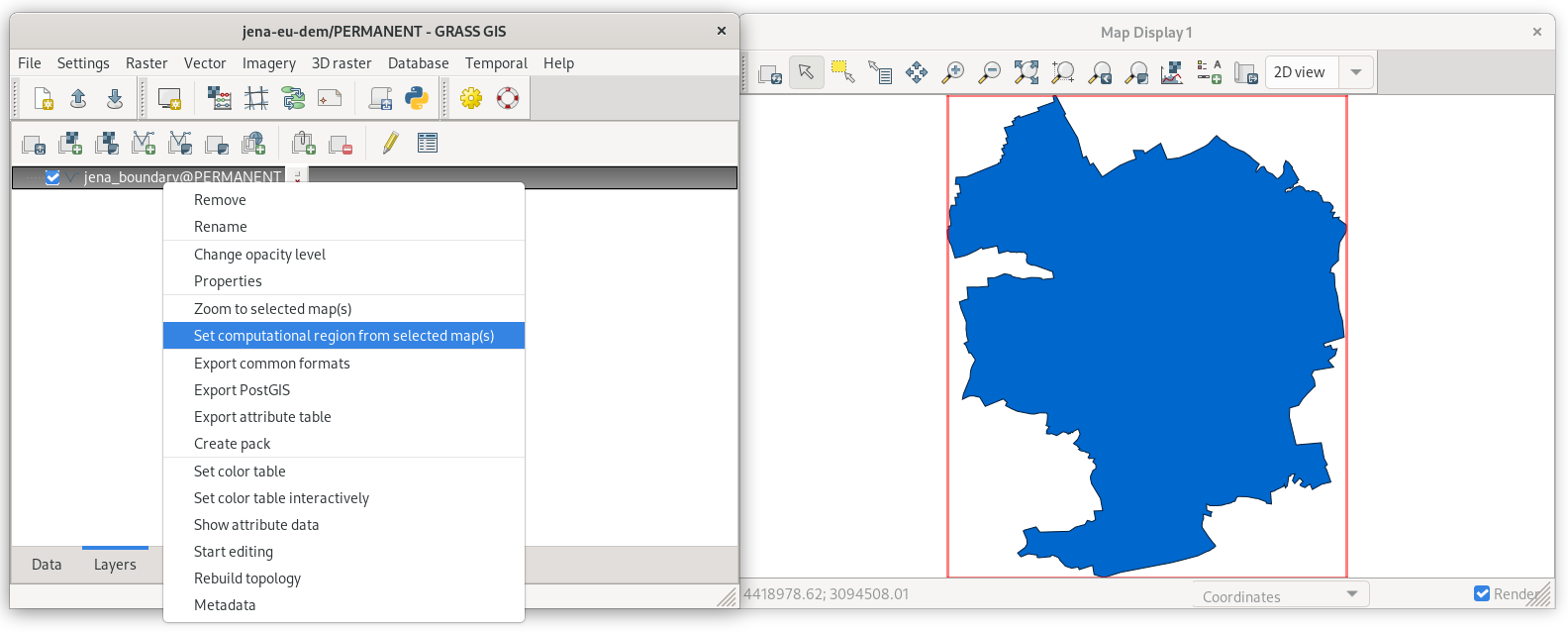
Fig. 84 Set computational region extent based on Jena city region.
Launch r.in.gdal () to import DEM tile, don’t
forget to enable -r flag.
r.in.gdal -r input=geodata/eu-dem/dem_sample.tif output=dem
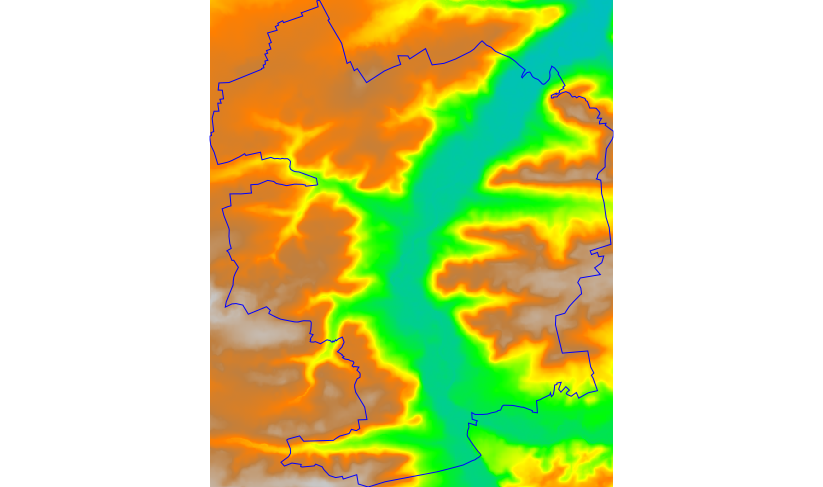
Fig. 85 Imported DEM limited to current region extent. Visualized using
elevation color table.
Reproject DEM into target project
Now switch back to jena-region (target) project (PERMANENT mapset).
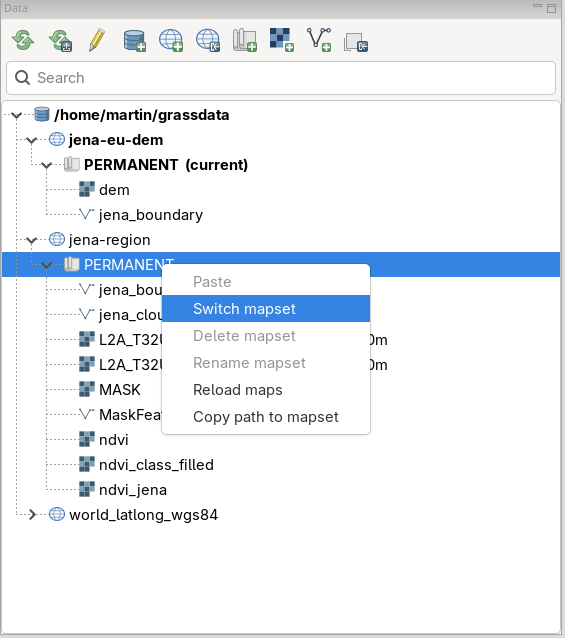
Fig. 86 Switch to jena-region project and PERMANENT mapset from Data tab.
Reproject DEM from jena-eu-dem project by copying in Data tab. Set desired resolution (25m) and choose appropriate resampling method (in our case bilinear).
Note
If a mask is enabled, it’s good idea to remove it before importing.
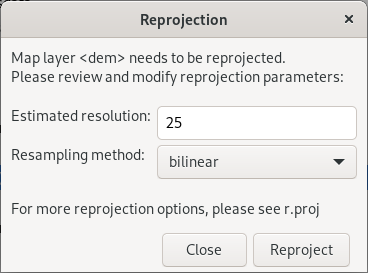
Fig. 87 Reproject raster data by specifying target resolution and resampling method.
Note
The same operation can be done by r.proj:
r.proj project=jena-eu-dem mapset=PERMANENT input=dem method=bilinear resolution=25
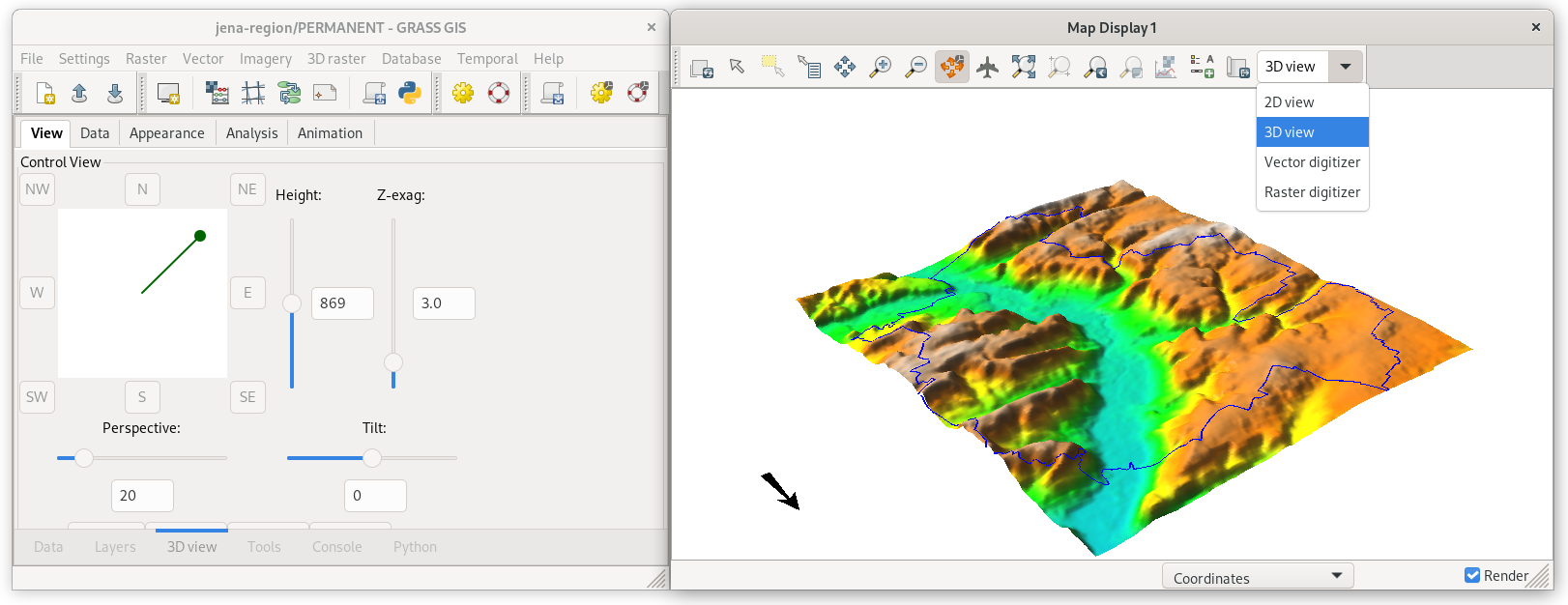
Fig. 88 Imported DEM in 3D view. Jena city region by blue color.